Setting up and testing AW Recovery EA
What AW Recovery does
AW Recovery EA is a system for recovering unprofitable positions. When a position goes badly against you, the EA locks it, splits it into many separate parts, and closes each part separately using profit from averaging orders. Closing losses in parts lets you exit a deep drawdown with a much lower deposit load than holding the whole position and waiting.
The EA can recover positions opened by hand, by another EA, or by a combination of both — and it can pause or disable the other EA while it works, so nothing interferes with the recovery.
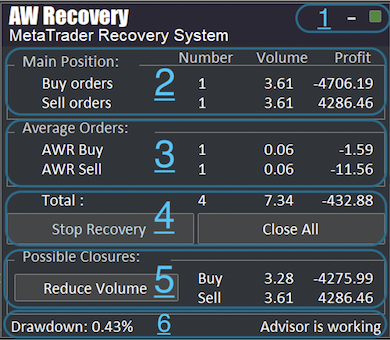
One symbol at a time The EA works only on the pair it is attached to and stays in standby until there is a losing position on that symbol. To recover several instruments, attach it to each chart separately — and make sure the account has enough free margin for the recovery orders.
How the recovery works
Three mechanisms run together:
-
Locking
The EA aligns buy and sell volumes so the loss stops growing. From this moment the drawdown is frozen, whatever the market does.
-
Averaging orders
A grid of averaging orders opens by the rules you set — volume, step, multipliers and an optional trend filter. Their profit is the fuel for the recovery.
-
Partial closing
As soon as accumulated profit covers a part of the losing position, the EA closes that part — starting with the orders you told it to prioritize. Step by step, the position shrinks to zero.
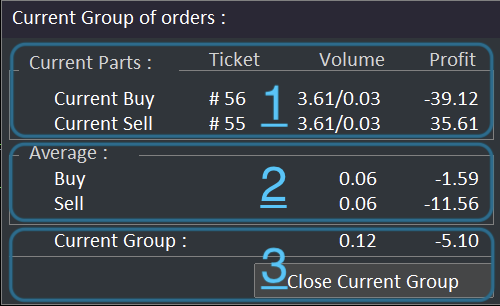
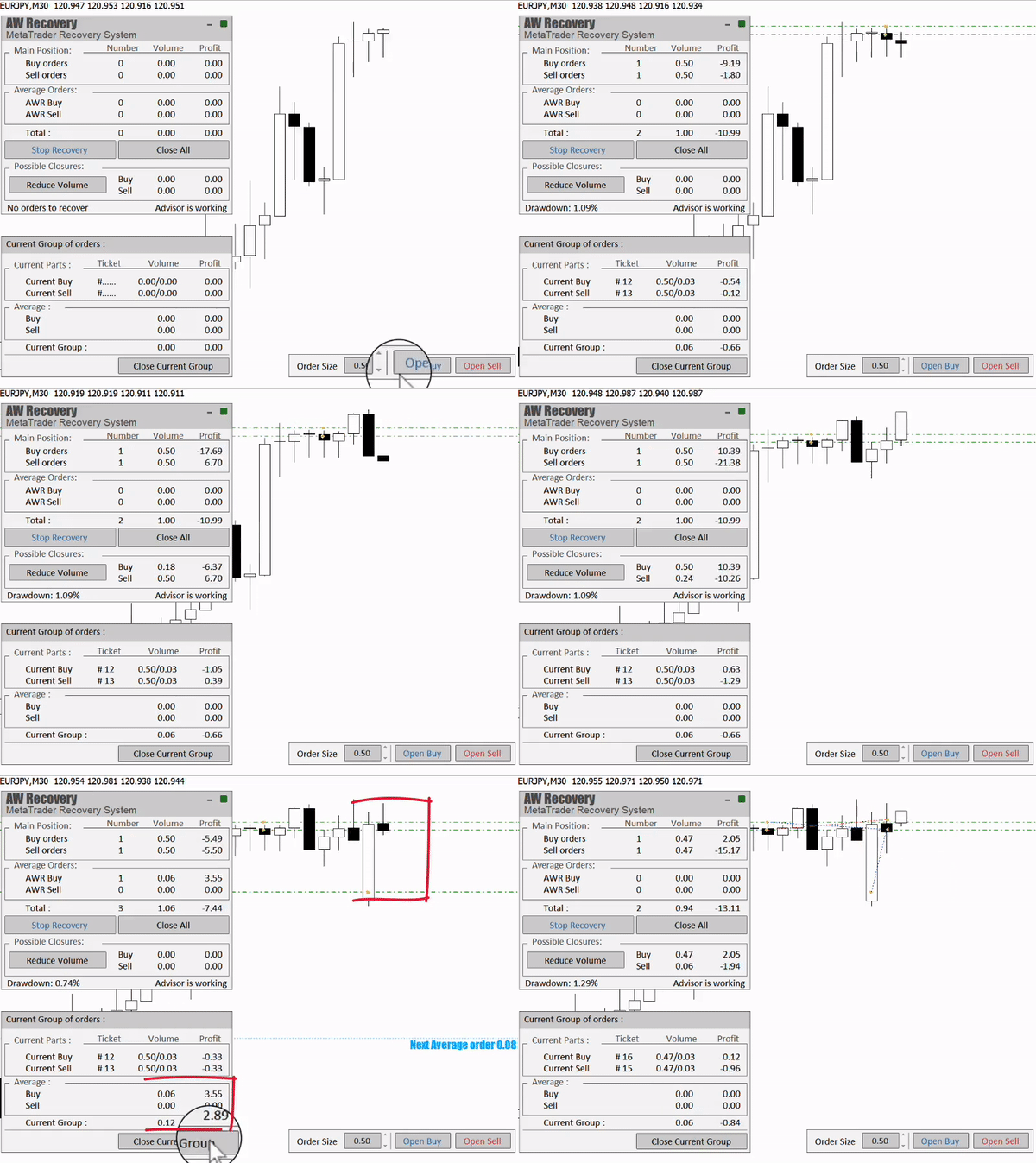
The part being processed right now — a slice of the losing position plus its averaging orders — is called the current group. You can watch it and close it manually from the current-group panel.
Testing in the strategy tester
Test the EA before running it on a live account. Use Visualization mode — the on-chart panel is fully functional in the tester, so you can simulate a real drawdown and watch the whole recovery.
-
Open the strategy tester
Select AW Recovery EA, pick a symbol, and enable Visualization.
-
Enter the deposit
Use the amount you actually plan to dedicate to the recovery — the test is only meaningful with a realistic deposit.
-
Choose the launch mode
Instant start, or start at a drawdown threshold in percent or in money — the same setting you will use live.
-
Simulate the drawdown
Open orders from the EA panel until you reach the volume and drawdown you want to test. Then let the EA take over and watch it unwind the position.
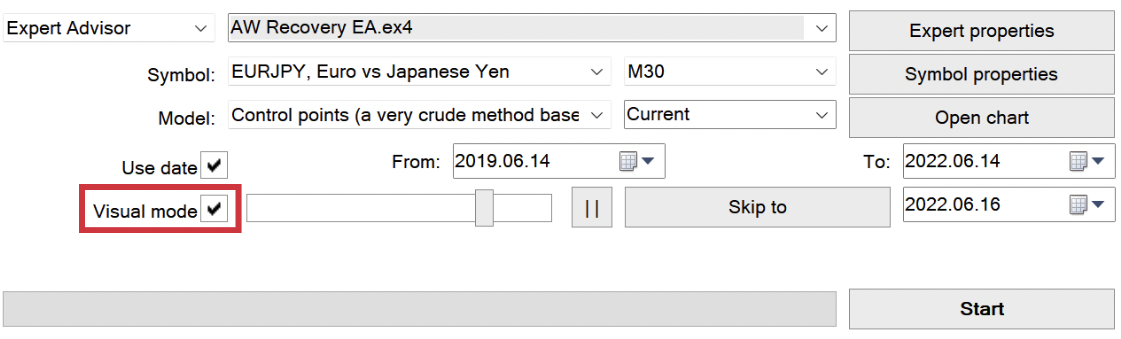
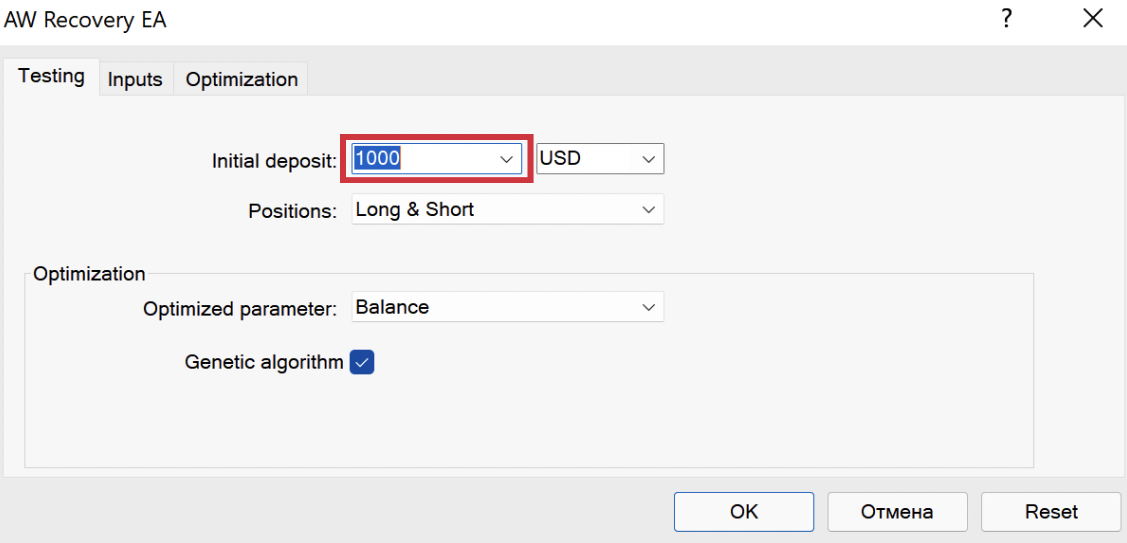
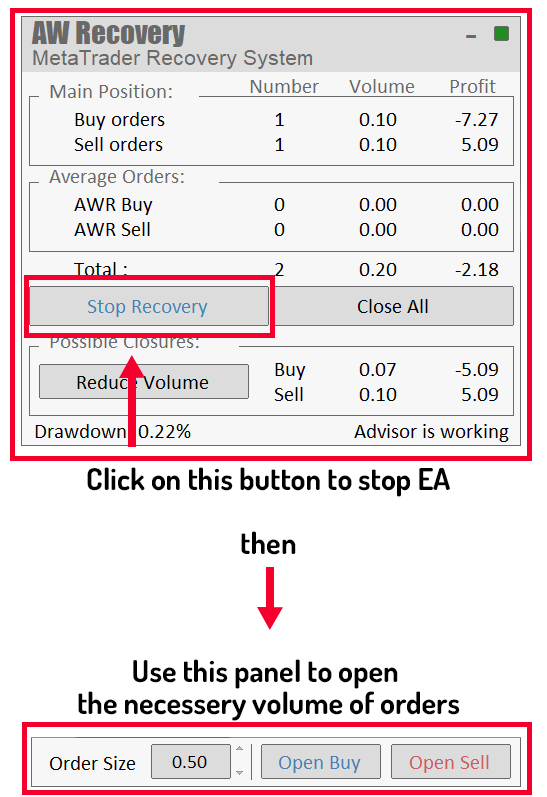
Pause anytime The panel works during the test: you can stop the recovery, resume it, or close the current group manually — exactly as on a live chart.
Exit from standby mode
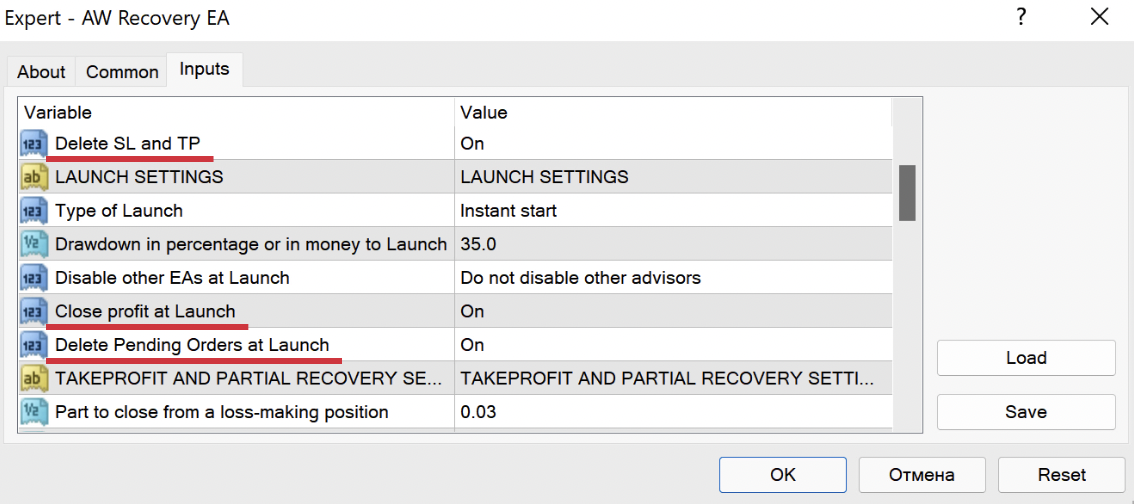
When the launch condition is met, the EA performs a one-time sequence of actions before starting the recovery. Each action is optional and controlled by an input:
| Action at launch | Input |
|---|---|
| Disable other EAs — on this symbol or on all symbols | Disable other EAs at Launch |
| Delete manually set StopLoss and TakeProfit levels | Delete SL and TP |
| Delete pending orders on the symbol | Delete Pending Orders at Launch |
| Close profitable orders and use the profit against the loss | Close profit at Launch |
All of this happens once, at initialization — not continuously during the recovery.
Automatic locking
Locking (Use locking) is what freezes the
drawdown. Whether to keep it automatic depends on how you run the EA:
- Enable it when the EA works standalone and you don't plan to interfere — especially on a VPS, where nobody is watching and a second algorithm could add volume the EA doesn't expect.
- Disable it when you add orders manually during the recovery, or run a parallel algorithm on the same symbol — the EA would otherwise immediately lock every new order it sees.
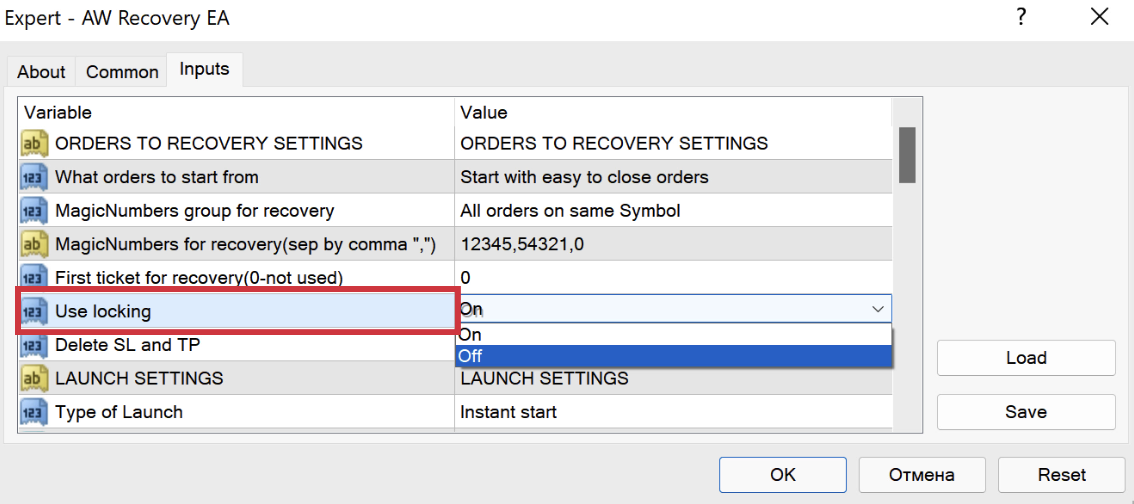
Use locking.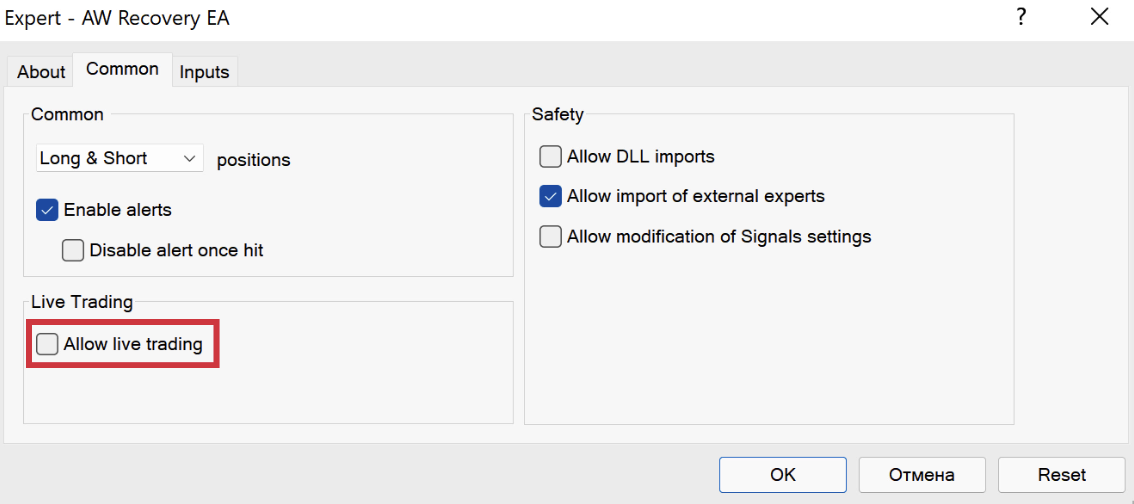
Running alongside other EAs
Compatibility comes down to one rule:
Compatible — when automatic locking is disabled, or the other EA uses different MagicNumbers. Incompatible — when automatic locking is enabled and both trade the same orders.
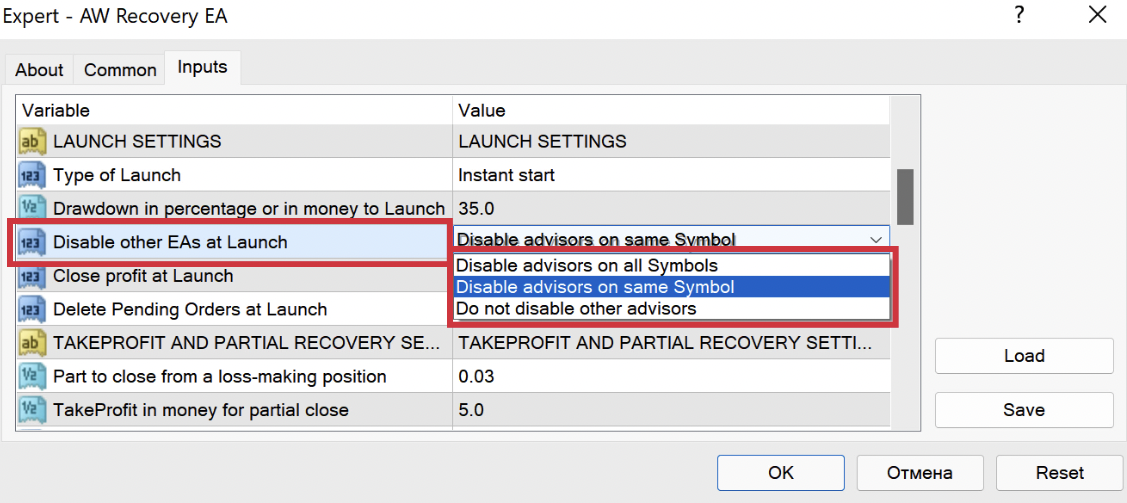
Then choose how the recovery starts:
| Launch type | When it fits |
|---|---|
Instant start |
There is already a losing position and you want the recovery now. |
Start at drawdown in percent |
The EA arms itself and waits until floating drawdown reaches the set percentage of the deposit. |
Start at drawdown in money |
Same, but the threshold is set in the deposit currency. |
Tuning recommendations
Four numbers define the character of the recovery. The manual's formulas give a sane starting point; refine them in the tester.
Part to close
Mentally divide the losing order into 6–8 parts — that is the slice the EA will try to close each time:
Volume of the averaging order
Keep averaging volume in a 1 : 1.5 ratio to the closing part:
TakeProfit for partial close
Do not set it below three spreads — the group must at least clear costs:
Step between averaging orders
Derive the step from real volatility — ATR(14) on the daily chart — instead of guessing points:
| Risk profile | Step | Character |
|---|---|---|
| High | ATR ÷ 4 | Dense grid, faster recovery, higher load |
| Medium | ATR ÷ 3 | The balanced default |
| Low | ATR ÷ 2 | Sparse grid, slow and conservative |
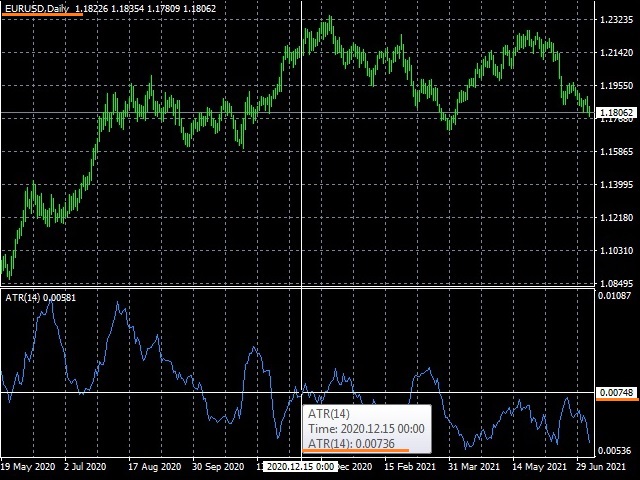
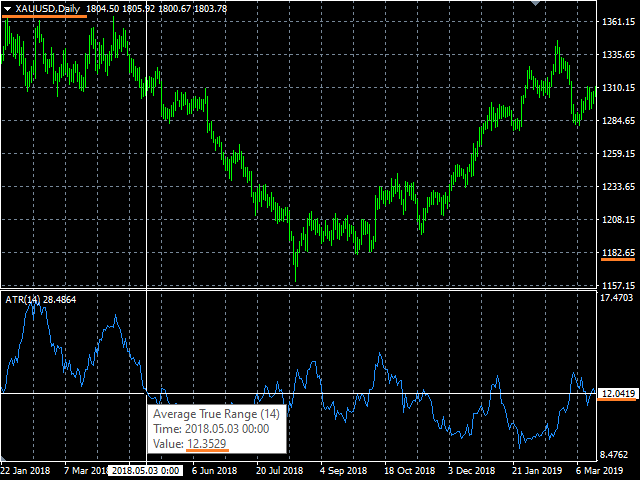
Multiplier to step then stretches the grid
progressively, so far orders sit farther apart than near ones.
Trend filters
Averaging orders can open blindly at intervals, or only when a filter
agrees. Three modes are built in
(Trend filtering for average orders):
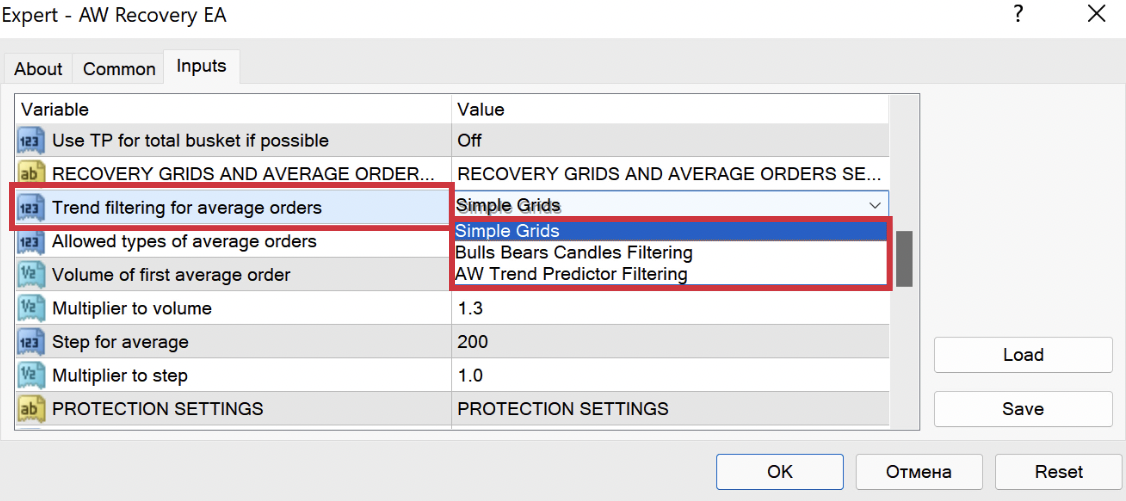
| Mode | How it opens averaging orders |
|---|---|
| BullsBears Candles | On reversal candle patterns detected by the built-in indicator. |
| AW Trend Predictor | On signals of the built-in AW Trend Predictor, with its own timeframe and sensitivity. |
| Simple grids | No filtering — strictly at the set step, like a classic grid. |
Trend Predictor mode settings
- Timeframe — set it larger than the working chart; the filter should see the bigger picture.
- Amplitude — higher values mean fewer, stronger signals.
- First trade — by trend direction, or at trend reverse.
- Averaging — in any direction, or only in the direction of the trend.
Current group & commissions
The current group is the slice of the losing position the EA is working on right now, together with its averaging orders. The group's TakeProfit calculation accounts for swaps and commissions — so the close is profitable in fact, not only on the screen.
On ECN accounts, where commission is charged separately, enable
Use full commission when calculating so
partial closes account for the full round-turn commission.
Notifications
The EA reports two events: recovery started (the EA left standby) and recovery completed.
| Channel | Setup |
|---|---|
| Alert | Popup in the terminal — works out of the box. |
| Terminal → Tools → Options → Email. | |
| Push | MetaQuotes ID in Tools → Options → Notifications. |
Identifiers and MagicNumbers
The EA distinguishes two groups of orders: the orders being recovered,
and its own averaging orders
(MagicNumber of average orders). Which
orders get recovered is set by
MagicNumbers group for recovery:
| Mode | What gets recovered |
|---|---|
| All orders on same symbol | Everything on the chart's symbol, whoever opened it. |
| Manual + listed MagicNumbers | Orders with the listed MagicNumbers, plus manual orders (magic = 0). |
| Same MagicNumbers only | Only orders whose MagicNumber is in the list. |
The queue is controlled by What orders to start
from — begin with the easy-to-close orders or with the hard
ones — and First ticket for recovery
overrides the queue for one specific order.